If you have used vista, you may have seen option to eject the cd drives on the right click menu on the cd drive.
This feature of automatically eject the cd drives is a part of windows vista but not provided with windows XP, but this option can be enabled in windows XP using a simple freeware software called Eject CD, Download it from here.
What is Eject CD?
Eject CD is a useful, free and easy to use software. It helps you easily eject and insert the cd/dvd-rom drivers just by using the keyboard shortcuts or your mouse.
So, you just need to download and install it and set the keyboard shortcut for your cd drive eject, after then you will see a blue coloured icon in the taskbar.
How to assign keyboard shortcut to eject cd drive?
1. Double click on the taskbar icon.
2. A window will open up(as shown in the image below)
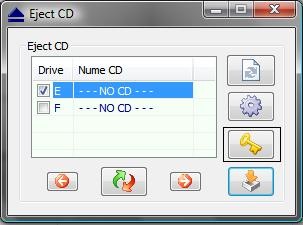
3. Select the cd / dvd drive and click the yellow coloured Key icon to assign the shortcut key to eject the cd / dvd drive automatically.
4. That’s it done.
Tip: If you don’t even want any type of software you can also download this exe file to eject your cd / dvd drives automatically.
3 replies on “How to eject cd drives automatically with a keyboard shortcut in windows xp”
Simple yet useful tool. Thanks for the pointers.
Are you sure right-click eject is not available in XP? I was able to find it 😀
Eject is available in XP. It’s even on home…