Normally, I have seen people using remote desktop connection utility provided by windows in my office lots of times while giving a presentation.
Sometimes there is a need to transfer files from the remote computer to the local computer in the middle of the presentation, but as due to the default settings of remote desktop connection utility it does not allow transferring of files in between the local and the remote computer.
How Configure Remote Desktop Connection Utility for File Transfer
1. Open Start>>Run and type mstsc
2. Now click on options and again click on Local Resources Tab.
3. Under Local Devices and Resources (in vista) ,click on more.. button. ( In Windows Xp ) you will see a checkbox as Local Drives
4. Check the Checkbox "drives" in the newly opened window in vista or check the checkbox Local Drives in Windows XP.
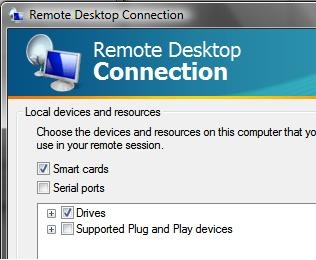
5. Click OK and connect to the remote computer now ,
This time you will be able to transfer files in between remote and local computer.
Tip: You can also configure some other options one time which will allow you to use remote desktop in a more convenient way.
14 replies on “Copy , Paste and Transfer files with remote desktop connection to and from your remote computer”
thanx for the info. now, my drive directly connected to my remote machine d-_-b
Nice help, now my local drive appears
Thank you
Very good article. Thanks for the good information!.
You don’t mention how to get files from the remote connection. I go to my computer on both machines, no extra drives show up. Same with Network places. i can’t drag a file from the remote machine to mine. Bit of a hole in the article, don’t you think?
@cak – well it has nothing to do with drives but by checking the option above the hard drive become accessible. then u just need to copy or drag files from your remote desktop window to your computer
anyone know how to copy a display / open document and copy it say to word? im trying to copy a window display of an excel document and copy it to a word document.
Thanks a lot, worked like a charm!
This works . . . not always. The one environment where I cannot get it to work is on a Windows 2000 powered Iomega NAS server being connected to remotely by Remote Desktop Connection running on NT 4 Workstation at SP6.
My only work-around is I have to map an administrative share on the NAS back to the remote machine once logged in.
How to do make it work across WAN network?
I am using remote desktop to connect to my home computer from my work. Both are running windows XP Pro SP3.
I can connect and all is well but cannot copy files across.
i run sp3 and my friend sp3 we connect and we can copy files. right click on file that you want to transfer then go to your pc and click right button then the transfer will be started after transfer is complete you cant push paste and file will be on your computer!
Great stuff thanks
I too thought there was a hole in the article as it didnt say how to access the drives but when i opened windows explorer it had the Drives mapped to the remote machine under My Computer
I didnt try just dragging stuff from window to window.
Thank you! Answered my question
thank you! great tip!
Great article,
Thanks a lot ..