If you are one those firefox users who want to clean all the traces of your browsing history, then let me tell you there is very simple way to do it with firefox itself without any extension.
here is how you can automate the cleaning of your browsing history and cookies..
1. Open Firefox
2. go to File Menu >> Tools >> Options , click on privacy tab
3. check the option which says: Always clear my data when I close firefox (as shown in the image below)

4. now click on settings button in this section Private Data and choose what to clear while closing firefox automatically. (as shown in the image below )
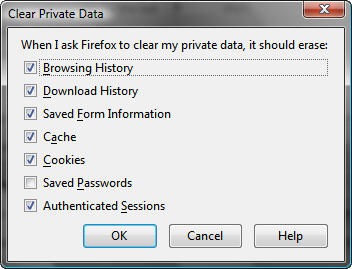
5. That’s it Done
Tip: we suggest not to check the option which says Saved Passwords as this would cause erasing your stored and remembered passwords in firefox.
3 replies on “clean your traces after browsing in firefox automatically”
It’s a good idea not to erase your saved passwords (such a hassle to retype them all the time)however you should set a master password to protect them. Or else anyone with physical access to your computer could read your stored password and the site they belong to.
hi
i m facing some prob. to open the orkut, buz our office in all sites are restricted but i want access the orkut,
pls let me know how to access the orkut
I did the same thing every day but Ted’s suggestion is pretty cool.